

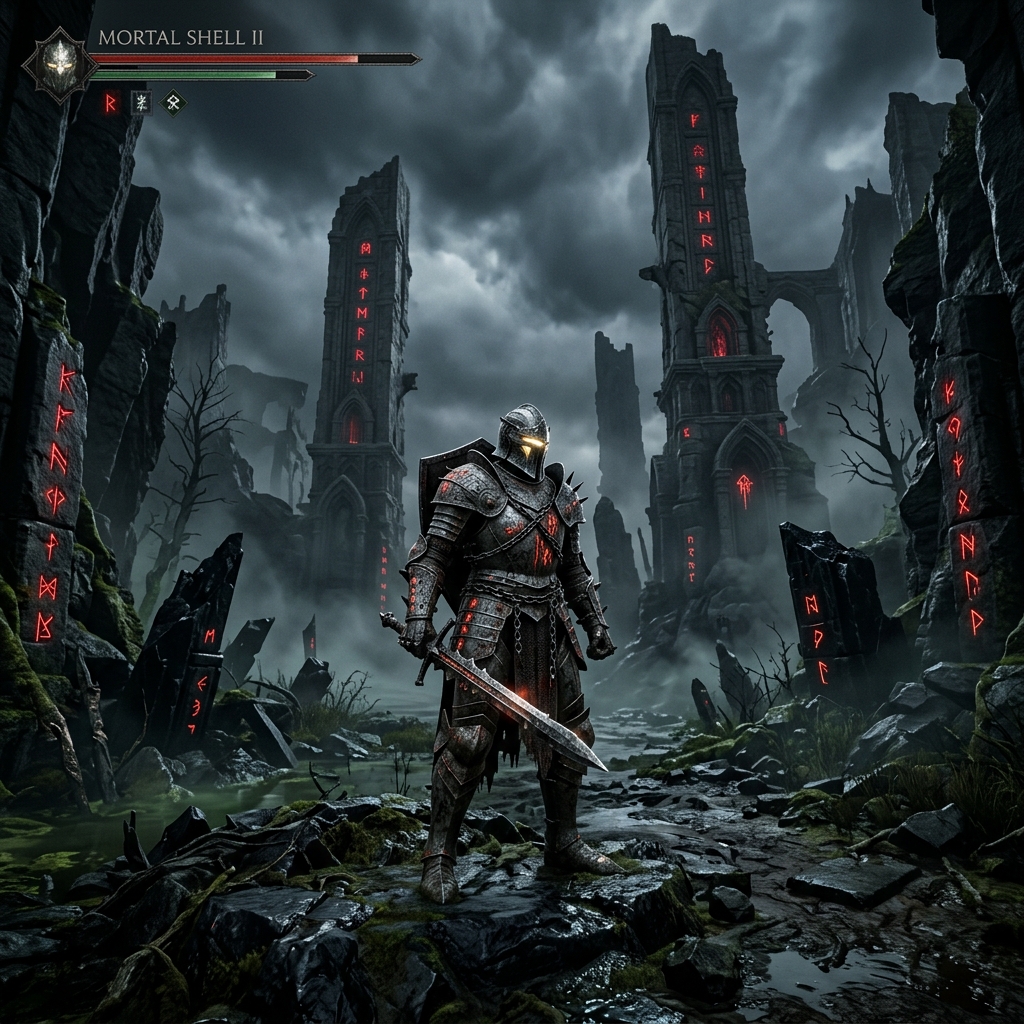
Cold Symmetry’s dark fantasy sequel Mortal Shell 2 is officially live across PC and consoles, delivering brutal melee combat powered by an upgraded visual engine.
While the visual presentation offers exceptional atmosphere and volumetric lighting, high-end rendering features can cause frame pacing drops and shader compilation stutter during intense combat.
Here is the definitive guide to the best PC graphics settings in Mortal Shell 2, balancing responsive parry timing with high frame rates.
Mortal Shell 2: Best PC Graphics Preset Breakdown
| Setting | Recommended Preset | Performance Impact | Visual Impact |
|---|---|---|---|
| Display Mode | Exclusive Fullscreen | Low | Critical for latency reduction |
| Volumetric Fog & Mist | Medium | High (-14% FPS) | Low (Medium retains ambient atmosphere) |
| Shadow Quality | High | Medium (-8% FPS) | High |
| Global Illumination | High | High (-12% FPS) | High (Soft contact shadows) |
| Reflections / Screen Space | Medium | Medium (-6% FPS) | Low |
| Post-Processing | High | Low (-3% FPS) | Medium |
| Textures / Streaming Pool | Ultra (8GB+ VRAM) / High (6GB) | Low (VRAM Dependent) | High |
| View Distance | High | Medium (-5% FPS) | High |
| Motion Blur | Off | None | Personal preference (Off improves parry clarity) |
| Depth of Field | Off | Low | Off improves peripheral target tracking |
Optimal Upscaling & Frame Generation Settings
- NVIDIA DLSS: Set to Quality mode for 1440p and 4K displays. For RTX 40-series and 50-series GPUs, enable DLSS Frame Generation to double frame rates on high refresh displays.
- AMD FSR 3.1 / XeSS: Set to Quality mode. If you are GPU-bound on an AMD Radeon RX 7000-series card, enable FSR Native AA + Frame Generation.
- NVIDIA Reflex Low Latency: Set to On + Boost to minimize input lag during harden-and-riposte counter windows.
How to Fix Frame Drops & Shader Stutter
If you experience sudden frame drops when entering new dungeon zones or triggering weapon ability effects, apply these three targeted adjustments:
1. Clear & Expand the DirectX Shader Cache
Open your NVIDIA Control Panel (or AMD Software) $\rightarrow$ Navigate to Manage 3D Settings $\rightarrow$ Locate Shader Cache Size $\rightarrow$ Change from Driver Default to 10 GB or Unlimited. This stops the engine from evicting compiled shaders between game restarts.
2. Cap Frame Rates via External Driver
Avoid using the in-game frame limiter if you encounter micro-stutter. Instead:
- Enable G-Sync / FreeSync in your driver panel.
- Set an external frame rate limit 3 FPS below your monitor’s maximum refresh rate (e.g., 141 FPS on a 144Hz monitor).
- Set in-game V-Sync to Off.
3. Adjust Texture Streaming Pool in Configuration
If you experience texture pop-in on GPUs with 8GB of VRAM:
- Navigate to
%LOCALAPPDATA%\MortalShell2\Saved\Config\WindowsNoEditor\. - Open
Engine.iniin a text editor and append:
[TextureStreaming]
r.TextureStreaming=1
r.Streaming.PoolSize=4096
Discussion & Responses